A window into your guest.
Open a FreeBSD desktop in a native Cocoa and Metal window. Or connect through the built-in VNC server.
Explore desktop support ↗ cubeFOR APPLE SILICON
Your favorite system. Your everyday machine.
Run FreeBSD on Apple Silicon with a lightweight,
native virtual machine monitor built in Rust.
Apple Silicon · macOS 15+ · 8.4 MB DMG · Notarized by Apple
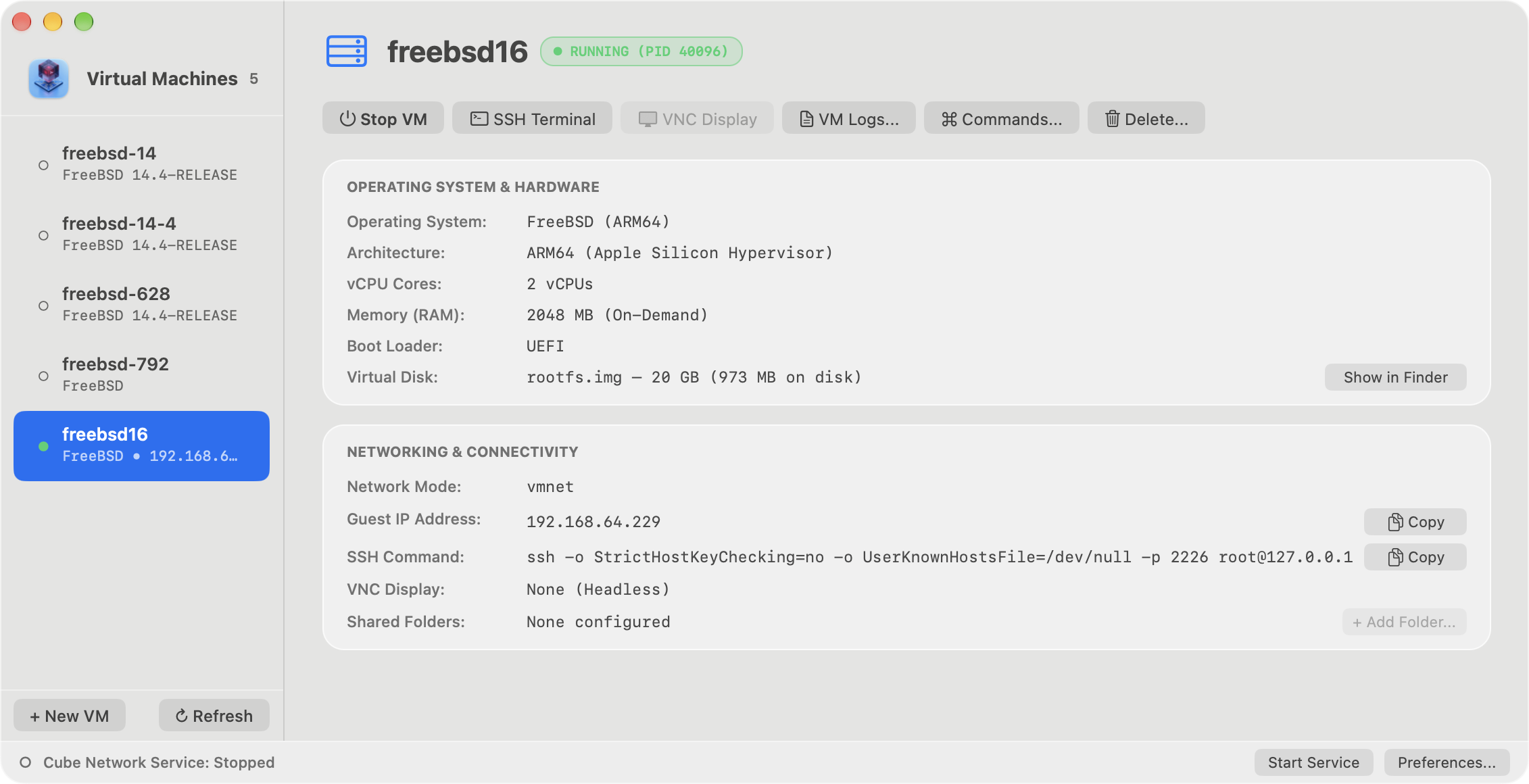
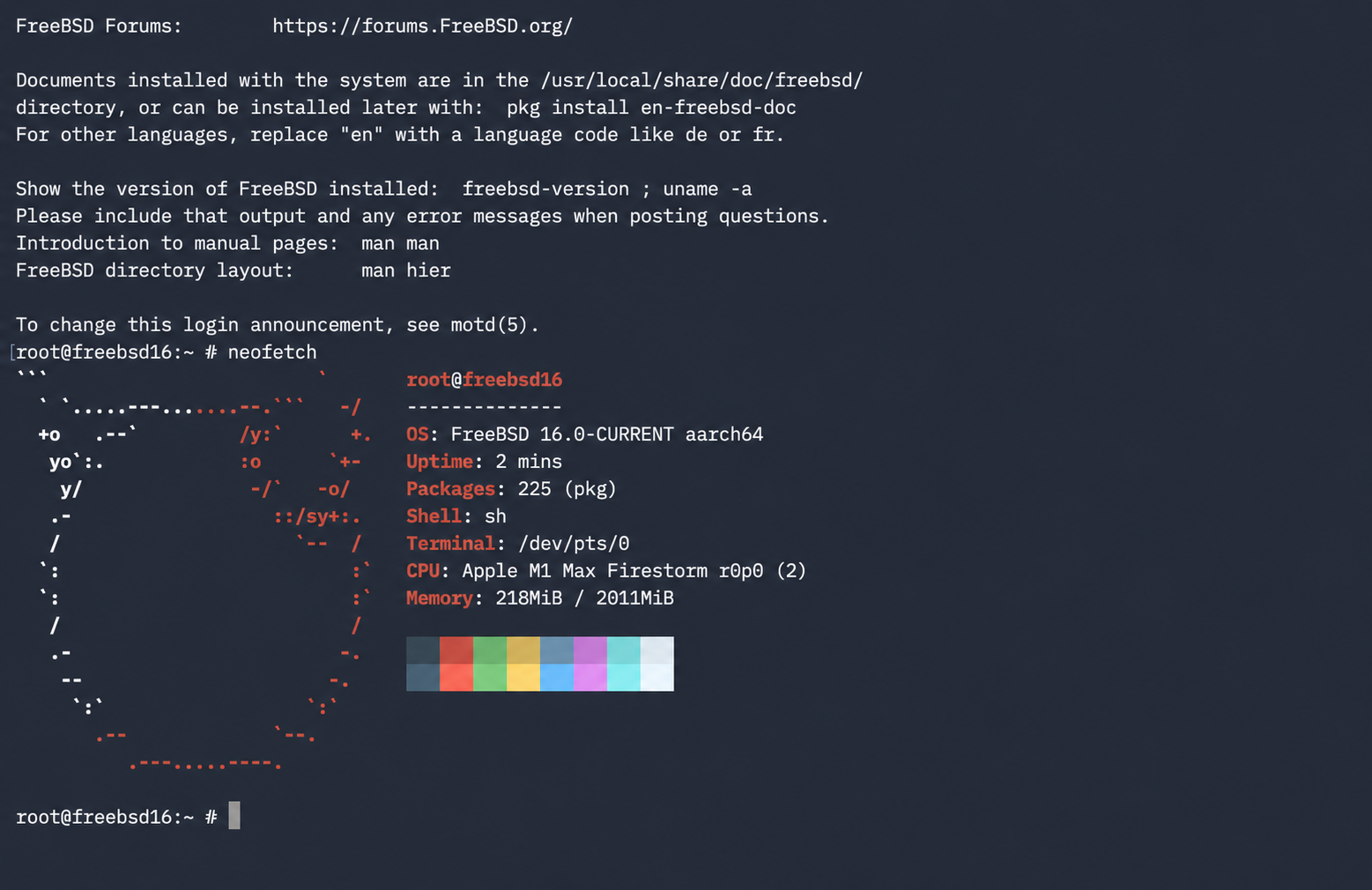
A FAMILIAR PLACE TO EXPLORE
Bring a different operating system into your day.
Keep the tools and the Mac you already love.
Open a FreeBSD desktop in a native Cocoa and Metal window. Or connect through the built-in VNC server.
Explore desktop support ↗Give your VMs a name. Start them, check their status, and manage their configuration with cubectl.
Meet cubectl ↗Use NAT or bridged networking. Share host folders with your guest, even when networking is off.
See shared folders ↗CLOSE TO THE METAL
Cube uses Apple’s Hypervisor.framework directly, with a Rust virtual machine monitor and a Swift menu bar companion. Real hardware virtualization, with the source open to explore.
Look under the hood ↗YOUR TERMINAL. YOUR FREEBSD.
Create a FreeBSD VM, connect over SSH, and share your project files. Keep it all a command away with cubectl.
Open Cube.app and choose “Open Terminal (Cube Environment)” to use the bundled cube and cubectl commands. Follow the setup guide for your first VM.
Set up Cube and boot your first FreeBSD guest ↗# Download FreeBSD and install it unattended
% cubectl create freebsd-dev \
--version 14.4 --unattended \
--ram 2048 --cpus 2 --ssh-port 2222
# Boot the installed guest
% cubectl start freebsd-devThe first command downloads the FreeBSD ARM64 disc1 ISO and completes installation before returning. Start Cube’s network service before booting the installed guest. Installation steps ↗
# Connect to your installed, running guest
% cubectl ssh freebsd-dev

# Inside FreeBSD
# uname -sm
FreeBSD arm64

# exit
Requires guest sshd, a reachable SSH endpoint, and valid credentials. The output above is illustrative. SSH setup ↗
A CLEAR PATH FROM HERE
A FEW THINGS TO KNOW
Cube runs ARM64 FreeBSD guests on Apple Silicon. Explore live shells, persistent installations, and graphical desktops. See the documentation for verified configurations and current limitations.
Yes. Download the notarized DMG, open it, and drag Cube.app into Applications. Launch Cube from Applications and follow the setup guide. Developer instructions are in Build from source.
The display uses a simple framebuffer with a fixed boot-time resolution. There is no 3D acceleration, runtime display resizing, or clipboard synchronization. VNC accepts one loopback client at a time.
Yes. Cube is licensed under Apache 2.0. Browse the source, read the architecture and verification guides, or explore the roadmap on GitHub.